The server shows as offline when it is actually running
Server appears offline, but it’s actually running
If the server appears as offline, it will be marked with a red circle on the dashboard:
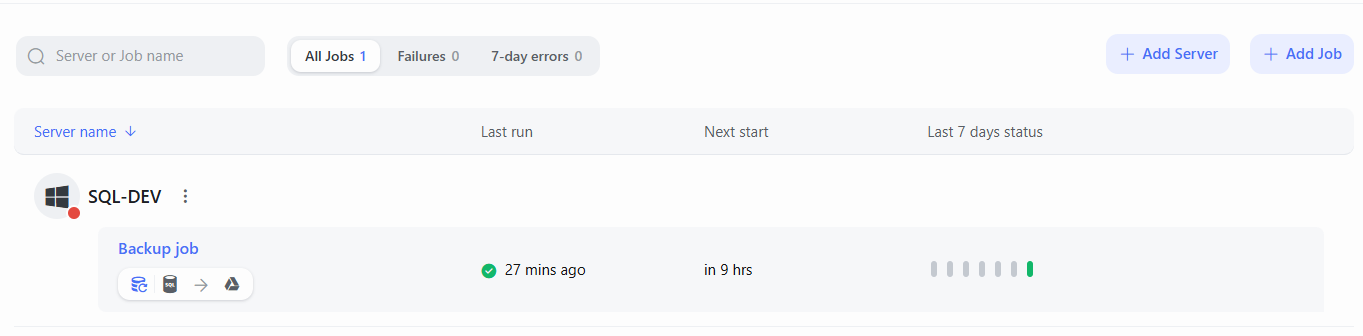
In practice, this means that no command requests have been received by the sqlbak.com server in the last 5 minutes.
This situation can be caused by the following reasons:
-
The SqlBak Agent cannot establish a connection to api.sqlbak.com
-
The SqlBak Agent is not running on the server
Let’s break down each scenario in more detail.
SqlBak Agent is not running
First, try launching the SqlBak Agent Config App. This app interacts with the SqlBak Agent process via web sockets, and if the SqlBak Agent is not running, you will see the following message:
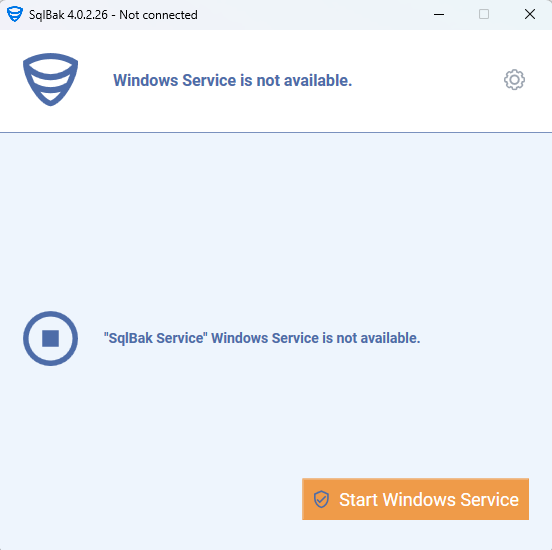
Step 1: Start the SqlBak Agent service
-
Open the SqlBak Agent Config App.
-
Click the Start Windows service button.
-
A console window will open, running the command to start the Pranas.NET SqlBak Service.
-
Carefully review the console messages — if the service fails to start, the window may display an error message explaining the cause.
Step 2: Check SqlBak Agent service settings in Windows
If the service does not start or stops intermittently:
-
Open the Windows Services management console (
services.msc). -
Find the service named SqlBak (Database Backup).
-
Right-click the service and select Properties.
-
Review the service settings to ensure they match the recommended configuration (see example screenshot below).
-
Make any necessary adjustments and try starting the service again.
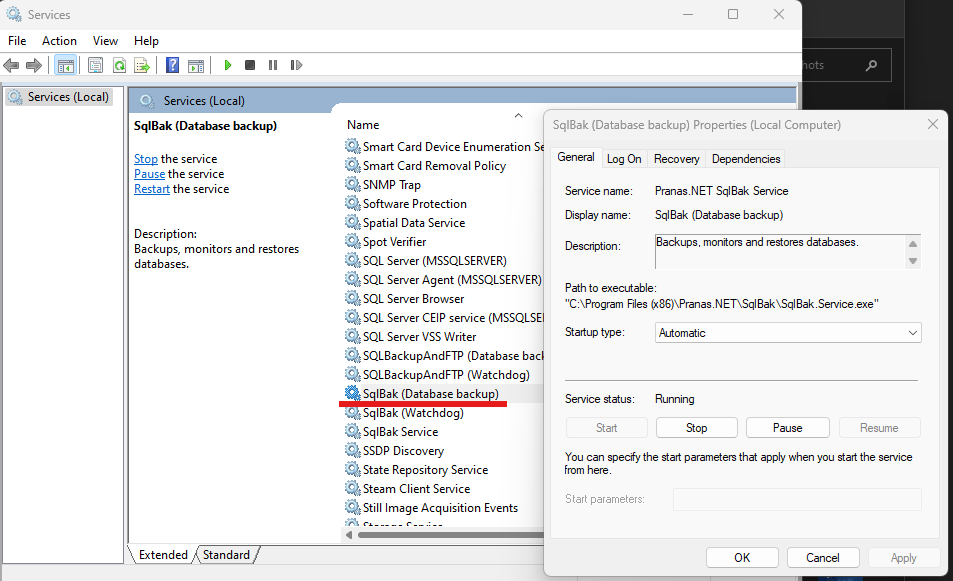
Step 3: Check the Windows Event Log
If the service is correctly configured but still does not start, it is recommended to check the Windows Event Log for any errors related to SqlBak.
Additionally, you may find messages from other software, such as security or antivirus tools, that could be blocking the launch of SqlBak.
How to Open the Windows Event Log:
Press Win + R, type eventvwr.msc, press Enter → check Application, Security, and System logs for relevant errors.
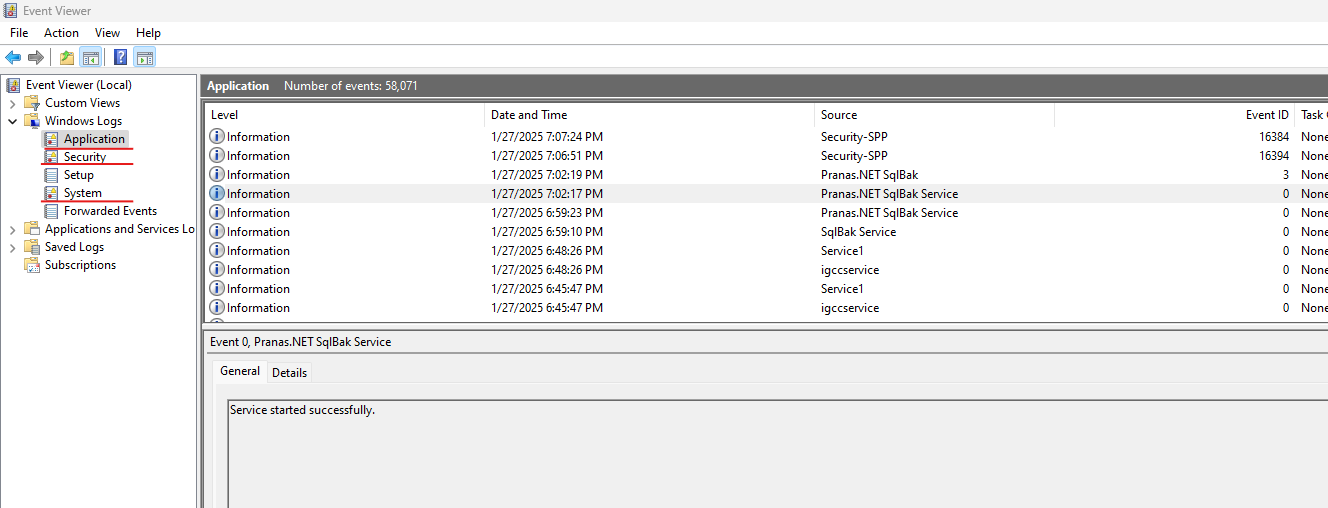
Step 4: Enable Advanced Log
In some cases, the service may start but fail within the first few seconds.
To diagnose this, you can enable Advanced Log for the SqlBak Agent via its configuration files.
Please refer to this guide for detailed instructions: How to Enable Advanced Log
After enabling advanced logs, restart the service and check if new log entries appear. These logs may contain clues pointing to the root cause of the problem.
Final Step: Contact Support
If none of the above steps resolve the issue, please reach out to our support team at https://sqlbak.com/support.
We kindly ask that you complete the steps outlined above before contacting us, as we will likely recommend starting with them — this helps save both your time and ours.
We’re here to help and will do our best to assist you!
SqlBak Agent cannot establish a connection to api.sqlbak.com
If the SqlBak Agent appears as running in the list of Windows services but shows as offline on the web dashboard, it’s likely because it cannot establish a network connection to api.sqlbak.com.
The simplest way to check this is to launch the SqlBak Agent Config App. It will attempt to connect to the sqlbak.com server, and if it fails, it will display the error message received from the system.
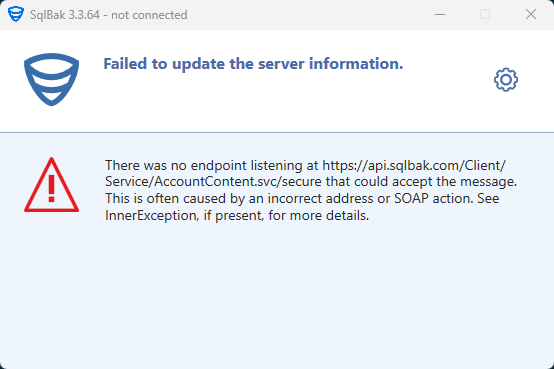
First, try opening the link in your browser: https://api.sqlbak.com/Client/Service/AccountContent.svc. You should see a technical page.
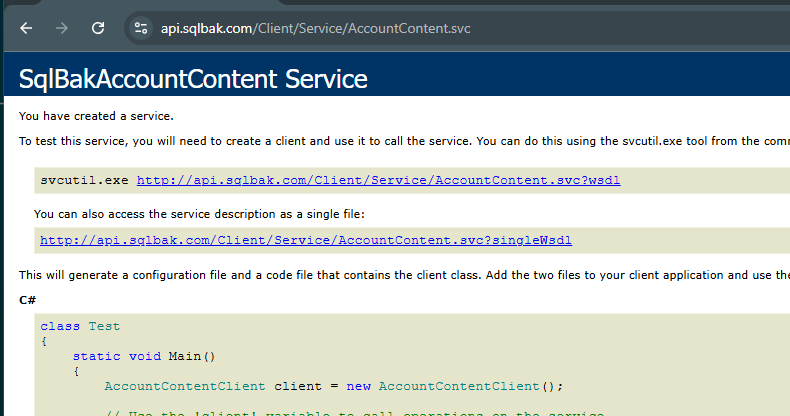
If you are unable to open this page, you need to resolve the issue on your side. Most likely, the problem is caused by the firewall. Allow access to the IP address 209.133.198.58 — this is the static IP for the domain api.sqlbak.com.
If you are using a proxy, please note that SqlBak does not automatically detect the system proxy. You need to configure it separately using this guide……………….
Possible troubleshooting steps:
-
If you use a proxy, make sure the proxy settings are configured properly.
-
Check your firewall settings and ensure access to the static IP address: 209.133.198.58.
-
Verify that you can open the link in your browser: https://api.sqlbak.com/Client/Service/AccountContent.svc
-
Review the Last errors tab in the SqlBak dashboard for any reported issues.
-
Check the Windows Event Log for related system errors.
-
Try restarting the SqlBak agent.