Cannot open backup device ‘path-to-backup’. Operating system error 5(Access is denied.)
Cannot open backup device 'path-to-backup'. Operating system error 5(Access is denied.)
SqlBak, in order to create a backup of SQL Server, executes the T-SQL instruction BACKUP DATABASE. This command makes SQL Server itself create the backup in the specified directory. Please note that it is the SQL Server process that writes the backup file to disk (not the SqlBak process). For this reason, it is necessary that SQL Server itself has write permissions to the backup directory.
If you encounter the error:
Failed to backup "<db-name>" Database with Full backup type. Cannot open backup device '<path-to-backup>'. Operating system error 5(Access is denied.). BACKUP DATABASE is terminating abnormally.
This means that the user account under which SQL Server is running does not have permissions to the directory where the backup is being created.
How to fix this?
If this is the first run on Linux
During installation, SqlBak creates a user group called sqlbak and adds the mssql user (the user under which SQL Server runs) into this group.
However, Linux processes determine the groups a user belongs to only once at process startup. Because of this, after installing SqlBak you must restart the SQL Server once so that it picks up the required permissions.
Do this with the following command:
sudo systemctl restart mssql-server
How to grant permissions to a folder on Windows
First, you need to determine under which user SQL Server is running.
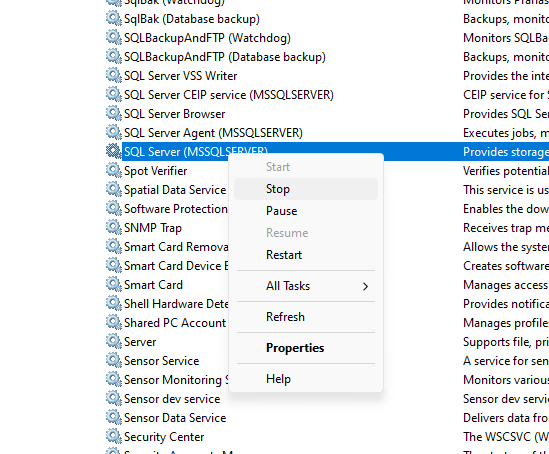
Open the list of services and find SQL Server. Select Properties.
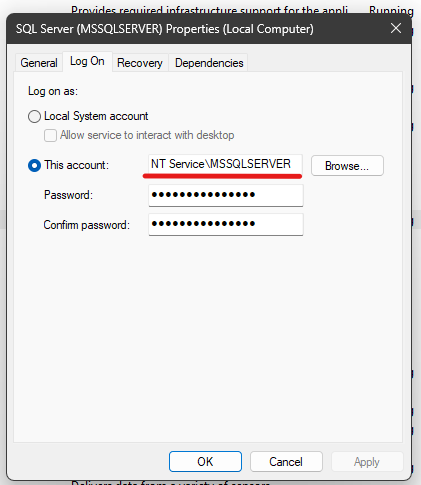
On the Log On tab you will see the user under which SQL Server is running.
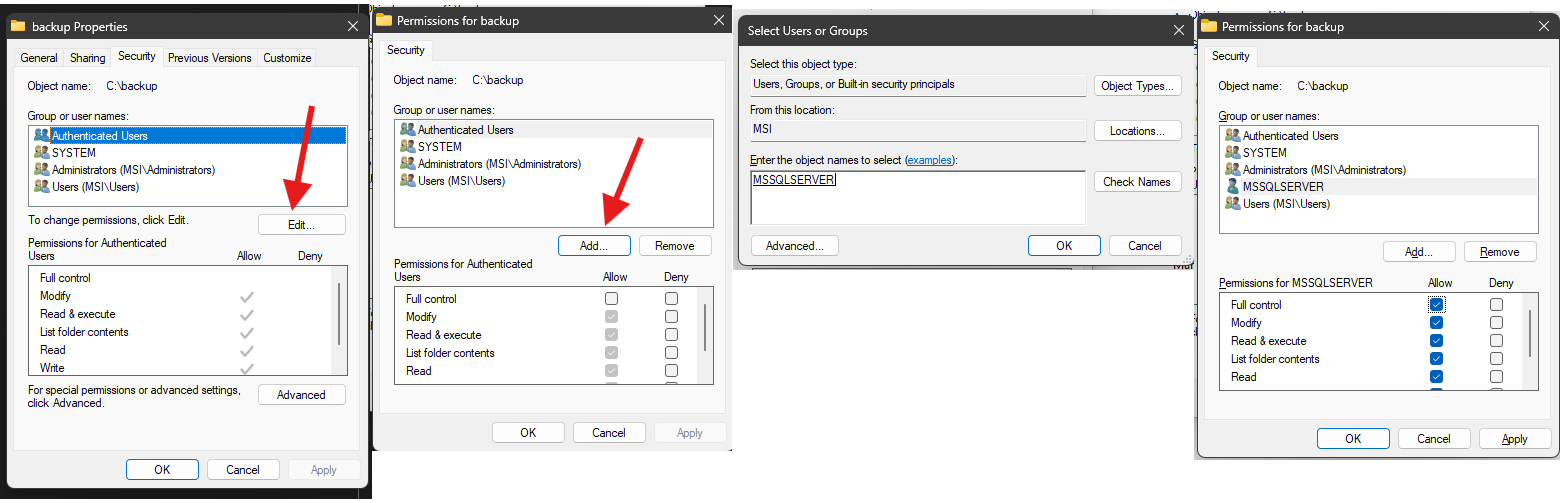
Right-click the folder where permissions are missing → Security tab → Edit → Add → Enter the user under which SQL Server is running → Grant Full control to this user.
How to grant permissions to a folder on Linux
First, determine the user under which SQL Server is running:
ps -ef | grep sqlservr
Usually, SQL Server on Linux runs under the mssql user.
Then grant write permissions to the required backup folder. For example, if the backup directory is /var/backups/sql:
sudo chown mssql:sqlbak /var/backups/sql
sudo chmod 770 /var/backups/sql
This way, the mssql user (SQL Server) and the sqlbak group will both have permission to write backups into this directory.