Windows
Windows Installation
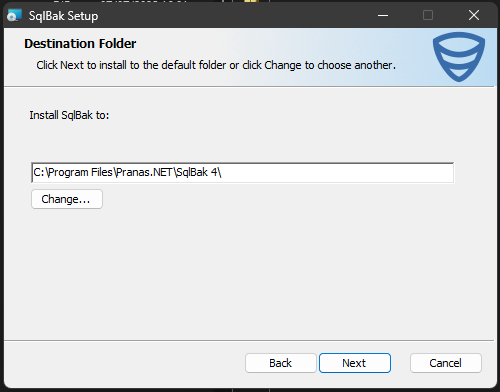
You can install SqlBak on Windows by downloading the MSI package and running the installer. The only setting you can specify is the installation directory path.
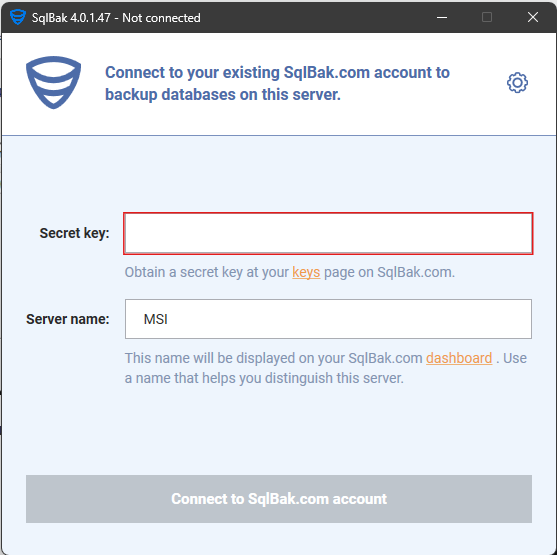
After installation, you need to bind the SqlBak Agent to your SqlBak account. To do this, you need to enter the secret key in the application. This key can be found either on the download page or on the page account/keys
Installation via PowerShell
SqlBak Agent can be installed programmatically using PowerShell. To download SqlBak, use this command:
Invoke-WebRequest -Uri "https://devops-win-pranas.westeurope.cloudapp.azure.com/download/msi/latest" -OutFile "sqlbak_setup.msi"
To install in quiet mode, use this command:
Start-Process msiexec -ArgumentList '/i sqlbak_setup.msi /q' -Wait
After installation, connect SqlBak to the dashboard using this command:
"c:\Program Files\Pranas.NET\SqlBak 4\sqlbak.exe" state --connect --secret-key=<your_secret_key>