PostgreSQL Connection
How to add PostgreSQL database connection on Linux
For PostgreSQL instances:
-
- Open SqlBak app and click “+Add” button to add new server connection.
- In the pop-up window, choose “PostgreSQL” in the DBMS type dropdown.
- Enter the Host, Port, Username, Password
-
(Optional) Click Advanced Settings to configure:
- Path to bin folder. SqlBak detects the path to the PostgreSQL bin folder automatically, so this setting is usually not required.
However, if you encounter version compatibility issues, you can specify the path manually.
Example:C:\Program Files\PostgreSQL\17\bin. -
Connect timeout. The time (in seconds) to wait for a connection to open.
This option defines how long SqlBak will wait when trying to establish a connection to the PostgreSQL server before timing out. If your server is under heavy load or on a slow network, you may want to increase this value. -
Command timeout. The time (in seconds) to wait for a command to execute.
This setting controls how long SqlBak will wait for a SQL command to complete. If you’re working with large databases or slow operations, increasing this value can help prevent timeouts.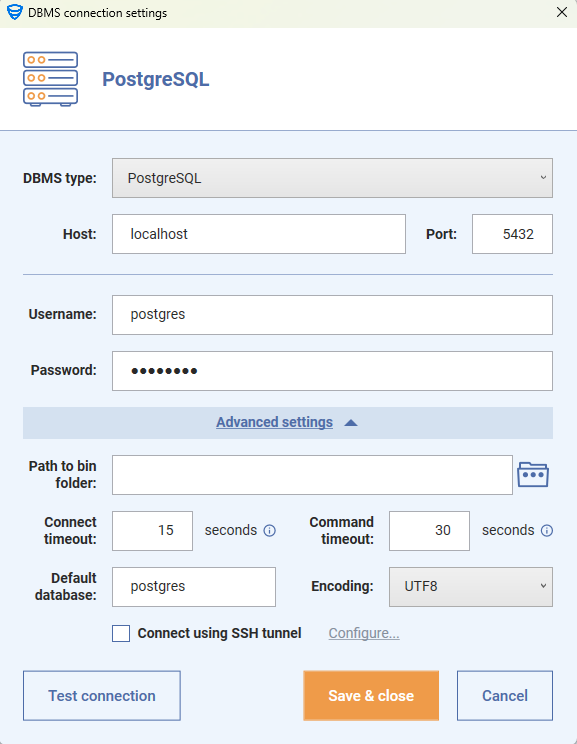
-
Connect using SSH tunnel
This option allows you to securely connect to a remote PostgreSQL server that is not directly accessible over the network. Instead of connecting to the PostgreSQL port directly, SqlBak will establish a secure SSH tunnel, and forward the PostgreSQL connection through it.
To configure SSH tunneling, fill in the following fields:
-
SSH host – the hostname or IP address of the SSH server that has access to the PostgreSQL instance. Example:
ssh.mycompany.comor192.168.1.100 -
SSH port – The port on which the SSH server is listening. Default is
5432, unless changed in your server’s configuration. -
Locally mapped port – This is the local port on your machine that will be used to forward the PostgreSQL connection through the SSH tunnel. Example: If you set
5432, then SqlBak will connect tolocalhost:5432internally, which will be securely forwarded to the remote PostgreSQL server.⚠️ Make sure the selected port is not already in use on your machine.
-
SSH username – The username used to authenticate on the SSH server. This must be a valid user account with SSH access to the remote server.
-
- Path to bin folder. SqlBak detects the path to the PostgreSQL bin folder automatically, so this setting is usually not required.
-
-
-
- Authentication method – Choose how to authenticate with the SSH server:
-
Password – Enter the SSH user’s password.
-
Private/Public key – Upload or specify a path to the SSH private key file (e.g.,
id_rsa) used for key-based authentication. Ensure that the key file permissions and format are valid.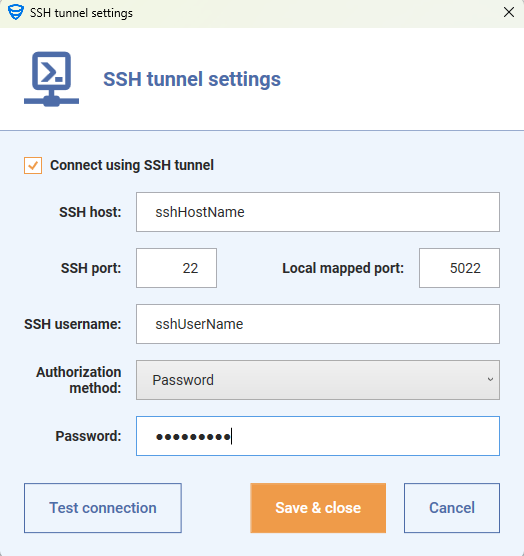
-
- Authentication method – Choose how to authenticate with the SSH server:
-
-
6. Click “Test Connection” to verify access and “Save&Close” to save connection.
How to add PostgreSQL database connection on Linux
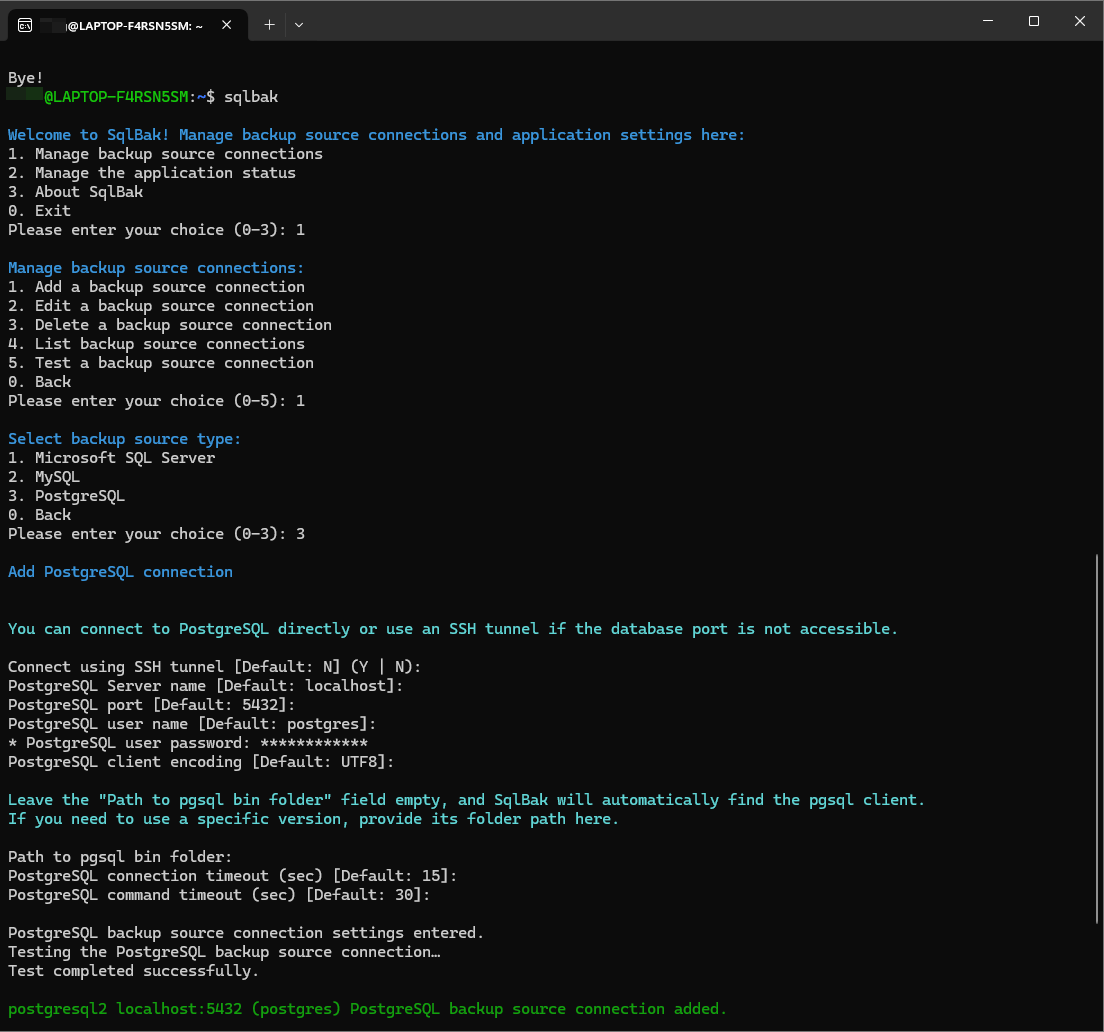
1. Open the terminal and run the following command:
sqlbak
2. In the interactive menu, select: 1. Manage backup source connections → 1. Add a backup source connection
Enter 3 to add a PostgreSQL connection.
3. Enter PostgreSQL credentials
- Connect using SSH tunnel:
- Enter
Yto configure an SSH tunnel if your PostgreSQL server is only accessible via SSH. - Enter
Nfor a direct connection. (default)
- Enter
- PostgreSQL Server name:
Specify the hostname or IP address of the PostgreSQL server (default:localhost) - PostgreSQL port:
Enter the port number if it differs from the default (default:5432) -
PostgreSQL user name: Enter the MySQL username (default:
postgres) -
PostgreSQL user password: Enter the password (hidden input)
Advanced Settings
- PostgreSQL client encoding:
Specify the character encoding used by the PostgreSQL server.
Default value:UTF-8 - Path to PostgreSQL bin folder:
Leave empty, and SqlBak will automatically detect thepsql and pg_dump.
If you need to use a specific version, provide its bin folder path.
Example:/usr/lib/postgresql/12/bin/psql - PostgreSQL connection timeout (sec):
Time in seconds to wait for the connection to establish before timing out.
Default value:15 - PostgreSQL command timeout (sec):
Time in seconds SqlBak will wait for SQL commands to complete.
Default value:30