Application Log
Application Log
The Application Log allows you to manage the application log files generated by SqlBak. This log contains detailed information about the application’s operations and can be helpful for troubleshooting and debugging purposes.
Log Levels
The log level determines the verbosity of logging. You can select from the following levels:
- Trace – Most detailed logging, includes all events
- Debug – Detailed logging for debugging purposes
- Information – General informational messages (recommended for most users)
- Warning – Only warnings and errors are logged
- Error – Only error messages are logged
- Critical – Only critical errors are logged
- None – Logging is disabled
By default, the log level is set to Information, which provides a good balance between detail and file size. Increase the level to Trace or Debug when you need more detailed information for troubleshooting, or decrease it to Warning or Error to reduce log file size.
Important: When the log level is set to Trace, sensitive information such as FTP passwords and other credentials may be included in the log files. Use this level with caution and ensure proper security measures are in place.
Managing Logs on Windows
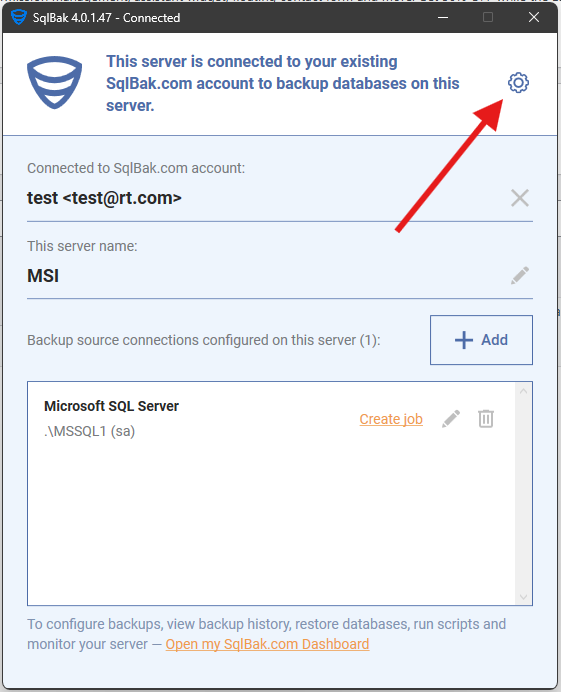
On Windows, you can manage application logs through the SqlBak Settings dialog:
- Log Size – Displays the current size of all application log files. This information helps you monitor disk space usage and determine when log files should be cleaned up.
- Download Log – Download the application log files to analyze them locally or send them to support.
- Delete Log Files – Permanently remove all application log files to free up disk space.
- Send Log to Developers – Send the log files directly to the SqlBak development team for troubleshooting and technical support.
Managing Logs via Command Line
For Linux systems, it is recommended to manage logs through the command line interface using the app-log command. This provides more flexibility and is better suited for server environments.
To view the current log settings:
sqlbak app-log
To save the current log to a file:
sqlbak app-log --save-log-to-file /path/to/log-file.log
To send logs to developers:
sqlbak app-log --send-log-to-dev
To delete log files:
sqlbak app-log --delete-log-files --confirm
To change the log level, you need to save the current settings to a file, edit the file to change the log_level value, and then load the settings back:
1. Save the current log settings to a file:
sqlbak app-log --save-settings-to-file /path/to/log-settings.json
2. Edit the file and change the log_level value (e.g., “Trace”, “Debug”, “Information”, “Warning”, “Error”, “Critical”, or “None”).
3. Load the updated settings:
sqlbak app-log --load-settings-from-file /path/to/log-settings.json --confirm
For detailed information about all available options and parameters for the app-log command, see the app-log command documentation.