Google Drive
Adding Google Drive storage as a backup destination
To send backups to Google Drive storage, you first need to set up a destination in the “Storages” page:
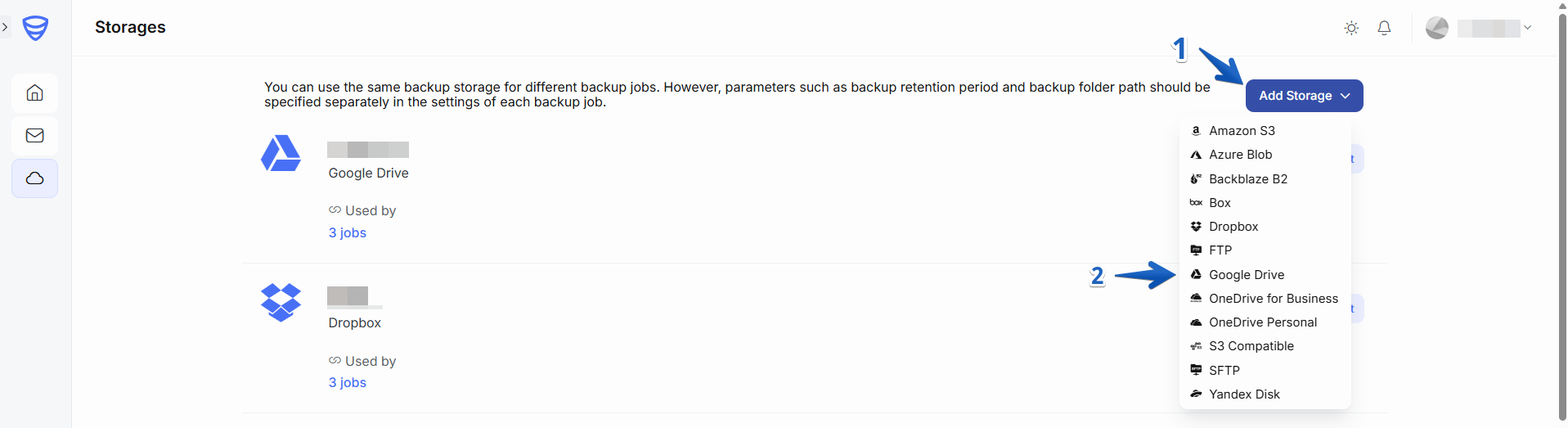
1. Go to the “Storages” page and click “Add Storage” and select Google Drive as the storage destination:
2. In the “New Google Drive Settings” pop-up window, click Authorize with Google button:

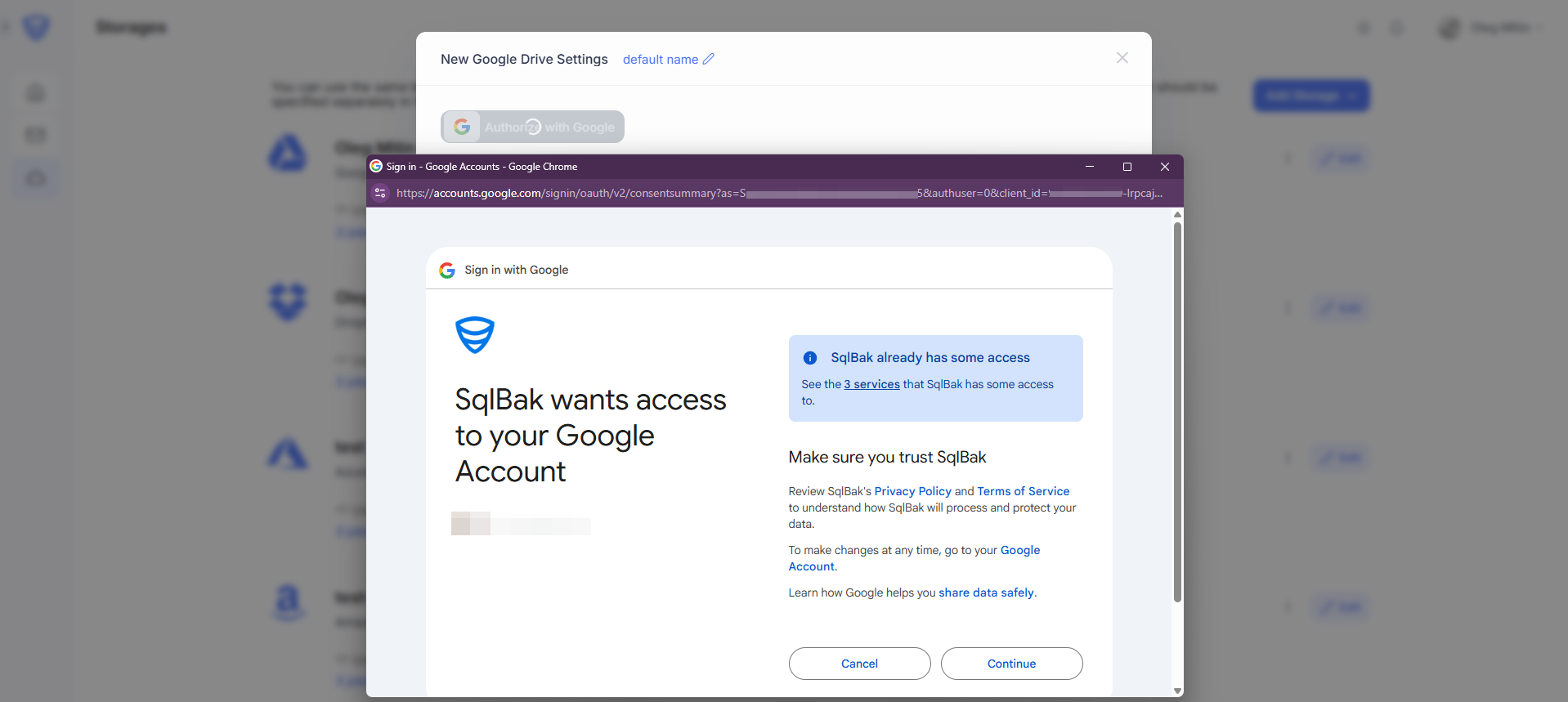
3. Grant SqlBak access to Google Drive storage:
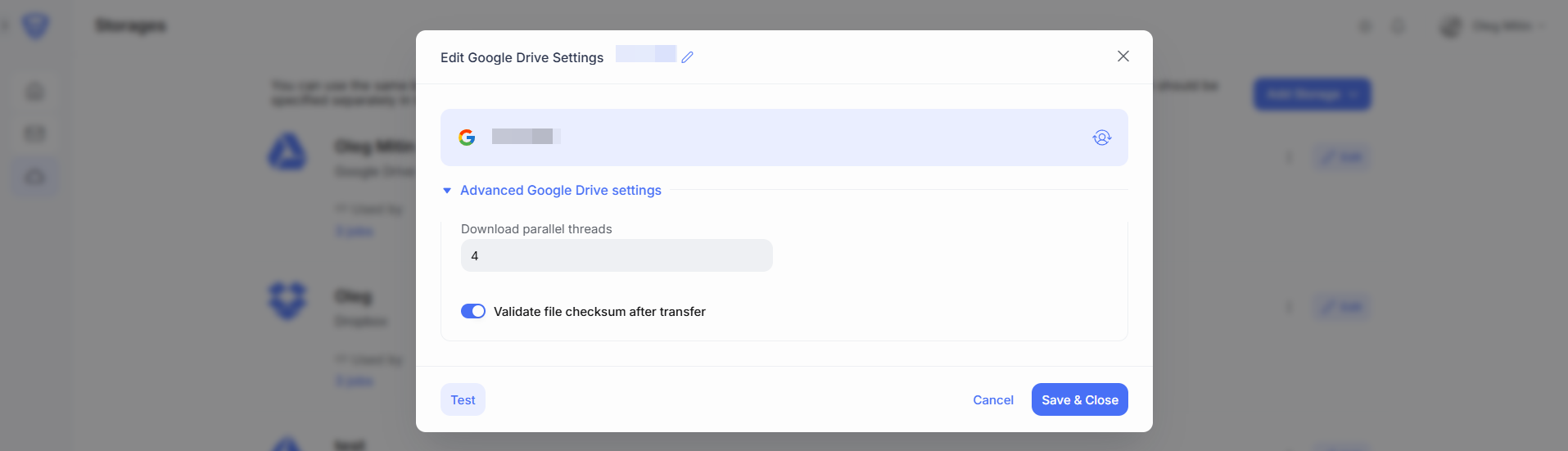
4. Once configured, click “Test” to verify the connection. If successful, click “Save & Close” to apply your settings.

These are the basic settings required to configure Google Drive storage as a backup destination.
Advanced Google Drive Settings (Optional)
You can further customize your backup storage with the following options:
-
Parallel Upload/Download Threads – Increase the number of threads to boost upload and download performance, especially for large files.
-
Validate file checksum after transfer – Verifies data integrity by checking the file checksum after transfer completion.
Steps to add Google Drive storage to a backup job:
-
Return to the Dashboard page.
-
Open the backup job you want to modify (or create a new one), and click the “Edit” button.
-
Navigate to the Storage Destination section.
-
Click “Add Backup Storage”.
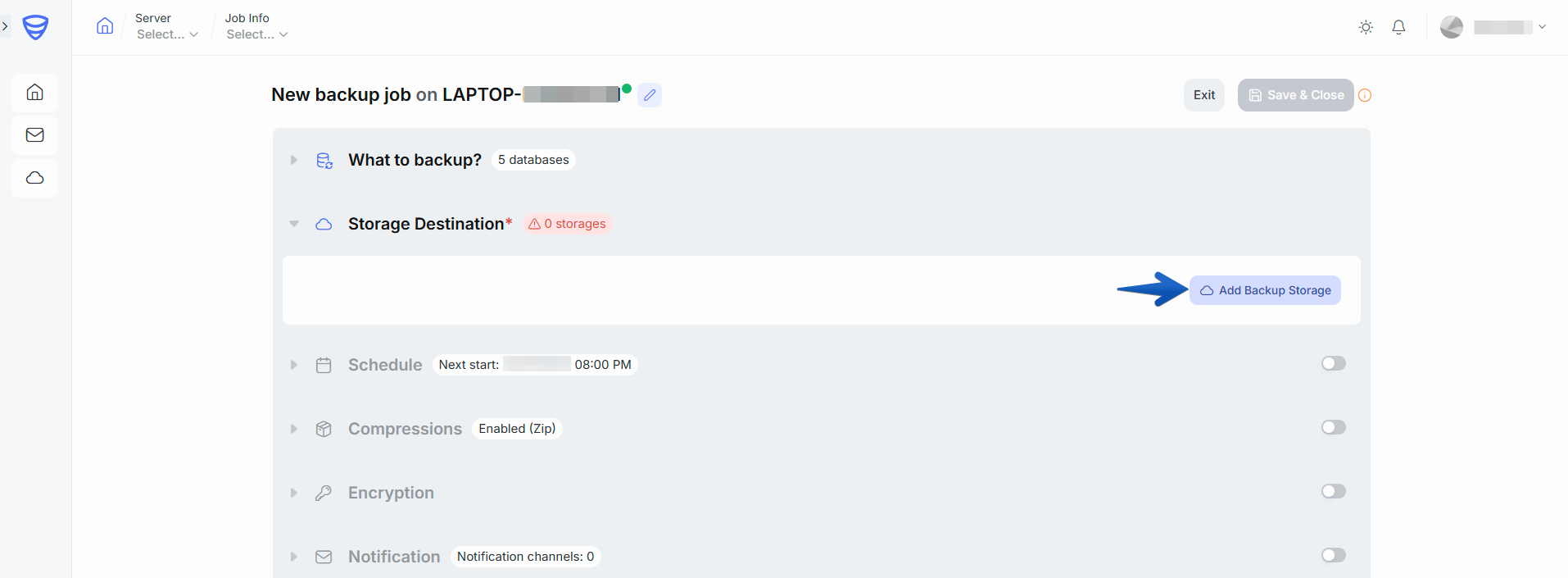
5. Select Google Drive storage as the destination.

6. In the configuration window, specify the following:
-
-
Autodelete old backups after – Define a retention period for automatically deleting old backups.
-
Enable minimum backups – Set the minimum number of backups to retain, even if they exceed the defined retention period.
-
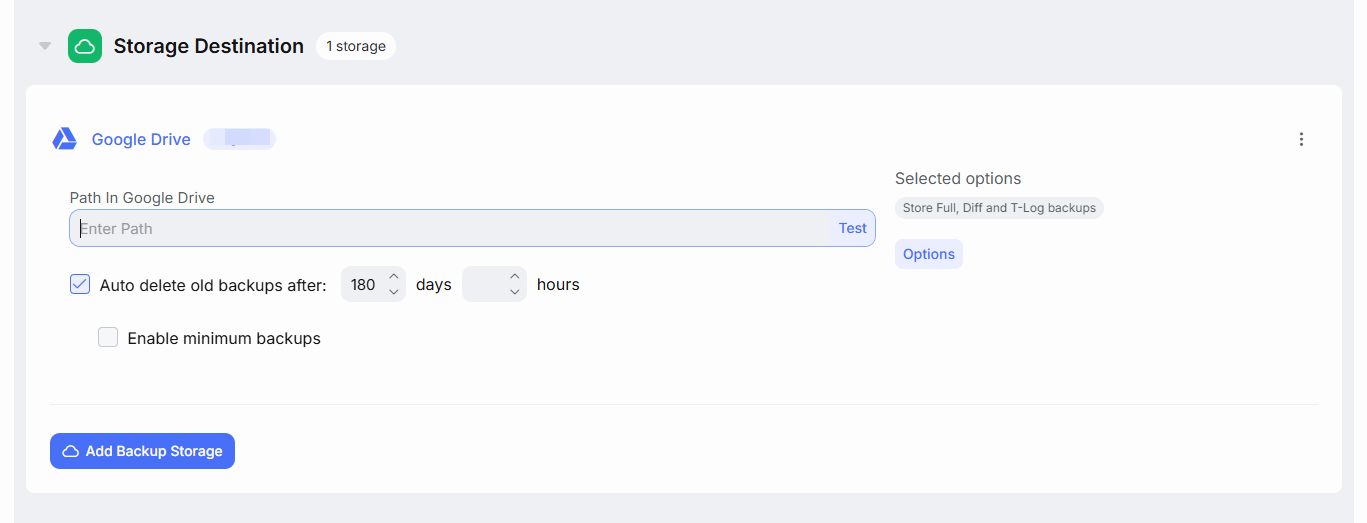
Optional settings:
-
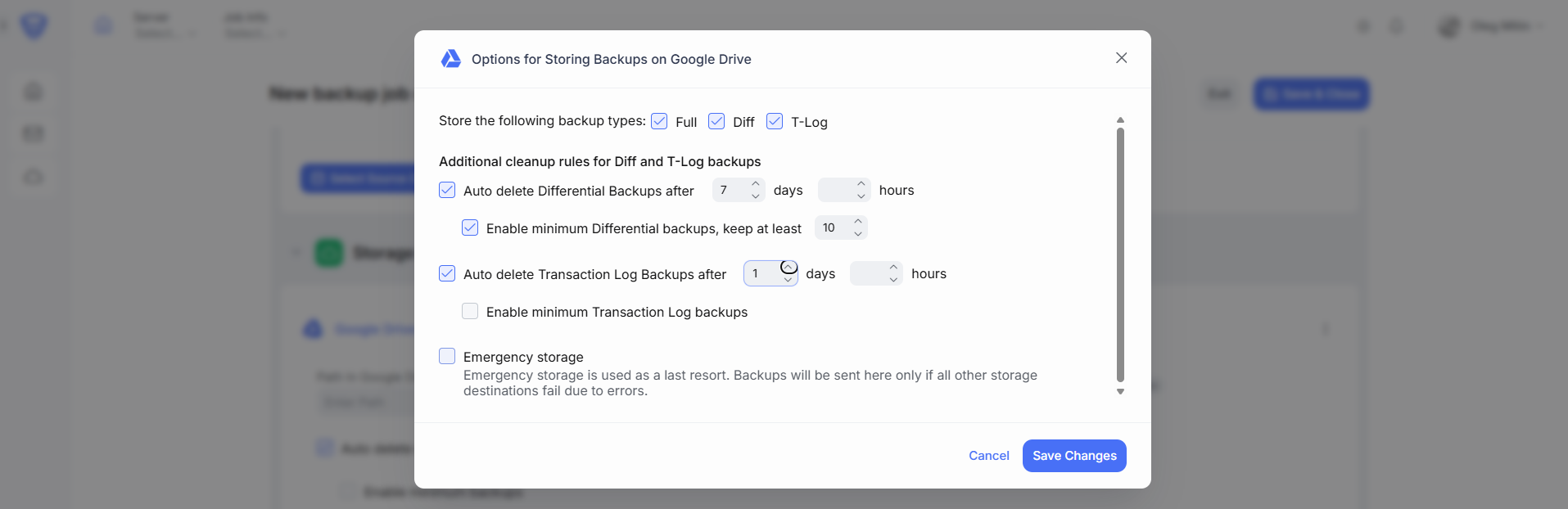
Store the following backup types (Full, Diff, T-Log) – Choose which backup types to store in this destination.
-
Auto delete Differential Backups after – Define a retention period specifically for differential backups.
-
Auto delete T-Log Backups after – Define a retention period specifically for transaction log backups.
-
Enable minimum Differential or T-Log backups – Set the minimum number of differential or T-Log backups to keep, even if older than the retention limit.
-
Emergency storage – Use this option to designate Azure Blob as an emergency/failover destination in case the primary backup storage becomes unavailable.