FTP
Adding FTP storage as a backup destination
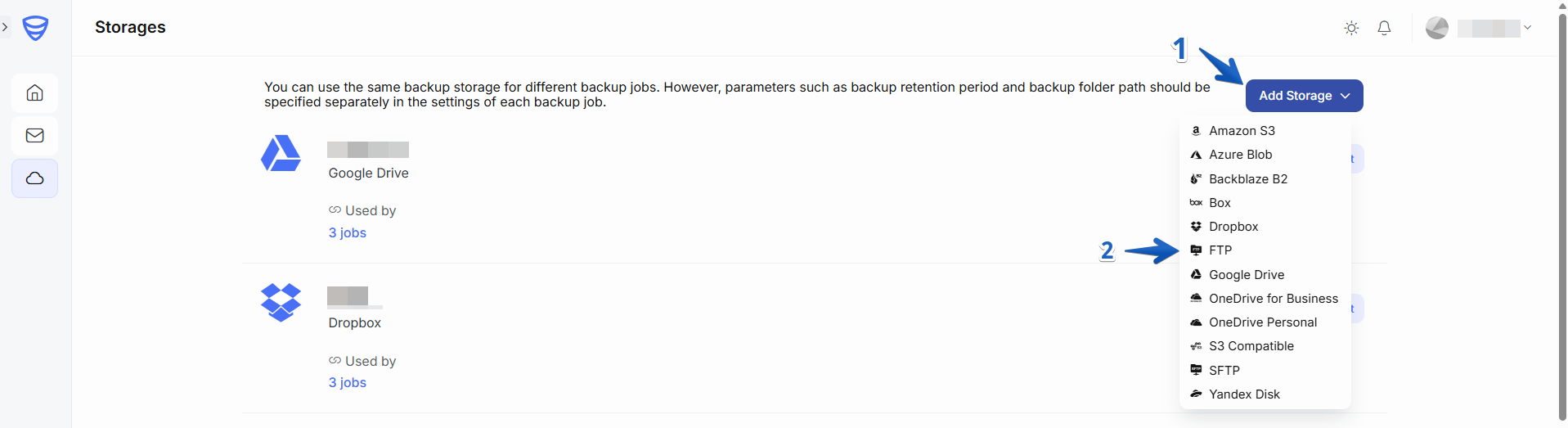
To send backups to FTP storage, you first need to set up a destination in the “Storages” page:
1. Go to the “Storages” page and click “Add Storage” and select FTP as the storage destination:
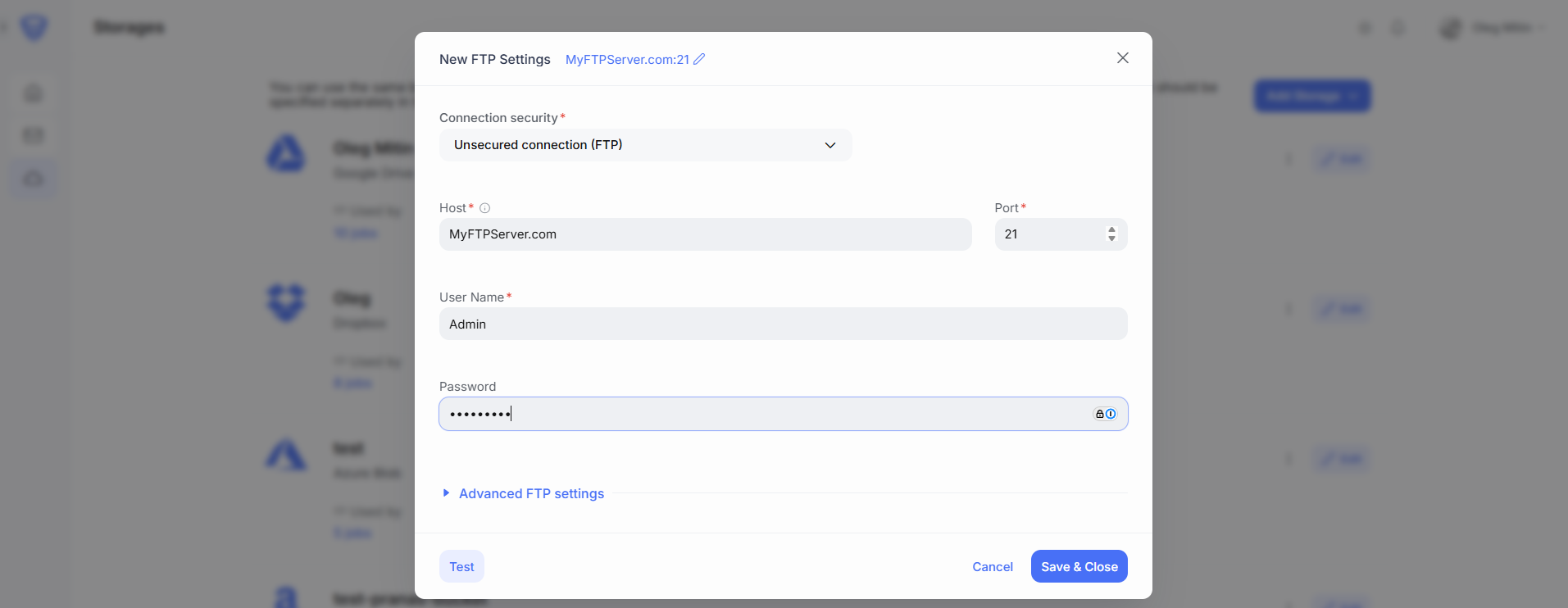
2. In the “New FTP Settings” pop-up window, enter the following credentials:
-
Host. Specify the network name of your FTP host. This is usually a domain name or an IP address, such as
MyFtpServer.comor127.23.121.33. -
Connection Security. Select the security protocol used by your FTP server:
-
FTP (Default)
-
Implicitly secured TLS/SSL (FTPS)
-
Explicitly secured TLS/SSL (FTPS)
-
-
Port. Enter the port number your FTP server uses (usually
21for FTP or990for Implicit FTPS). -
User Name. Provide the username for authentication.
-
Password. Enter the corresponding password to establish a secure connection.
Once configured, click “Test” to verify the connection. If successful, click “Save & Close” to apply your settings.
These are the basic settings required to configure FTP as a backup destination.
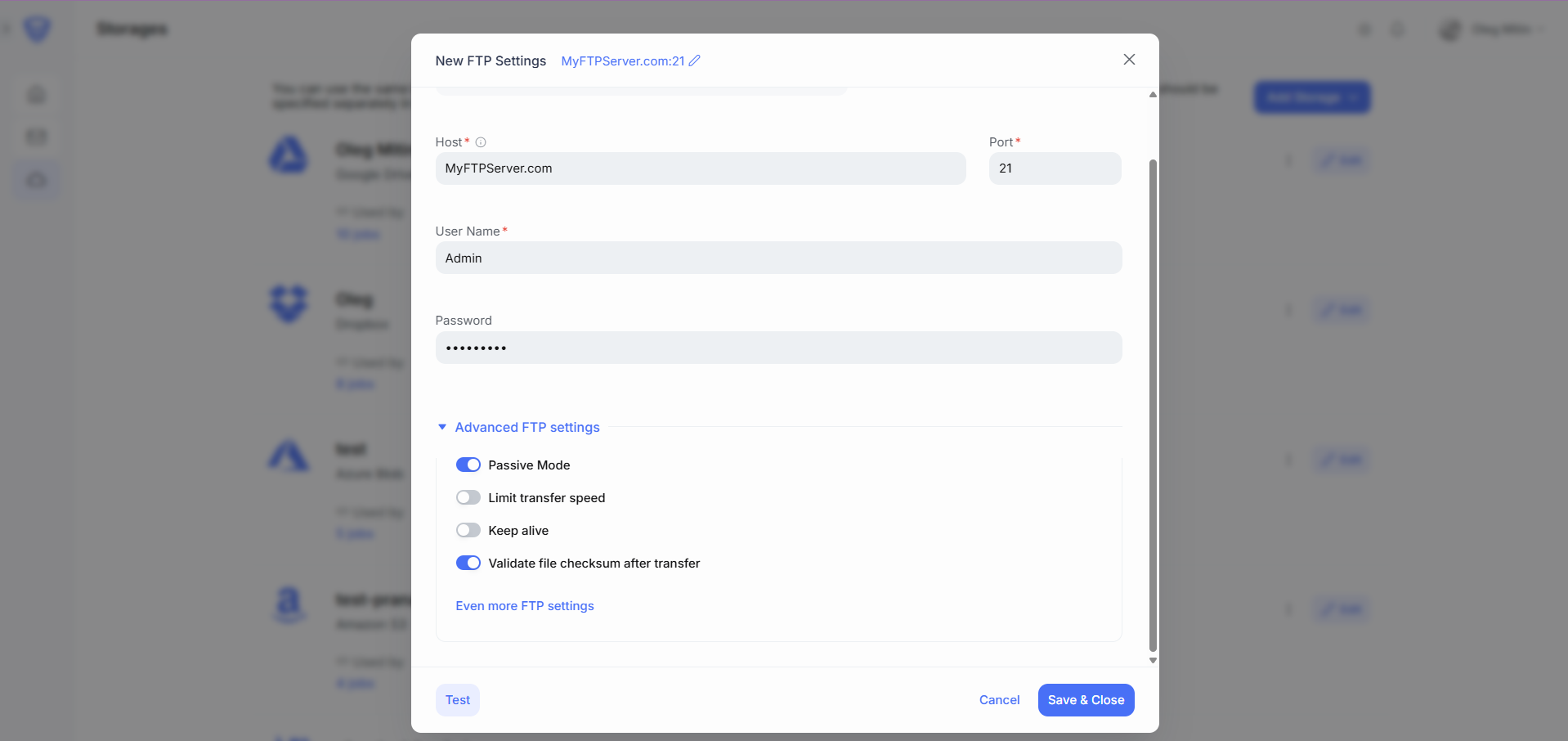
Advanced FTP settings (Optional)
You can further customize your FTP backup storage with the following advanced options:
-
Passive mode – Enables passive FTP mode, where the client initiates both control and data connections. Useful for clients behind firewalls or NAT.
-
Limit transfer speed – Set a maximum speed for data transfers to avoid consuming all available bandwidth.
-
Keep alive – Sends periodic commands to keep the FTP connection active during long transfers. Configure this by setting the Connection keep alive interval in seconds.
-
Validate file checksum after transfer – Verifies data integrity by checking the file checksum after the transfer is completed.
-
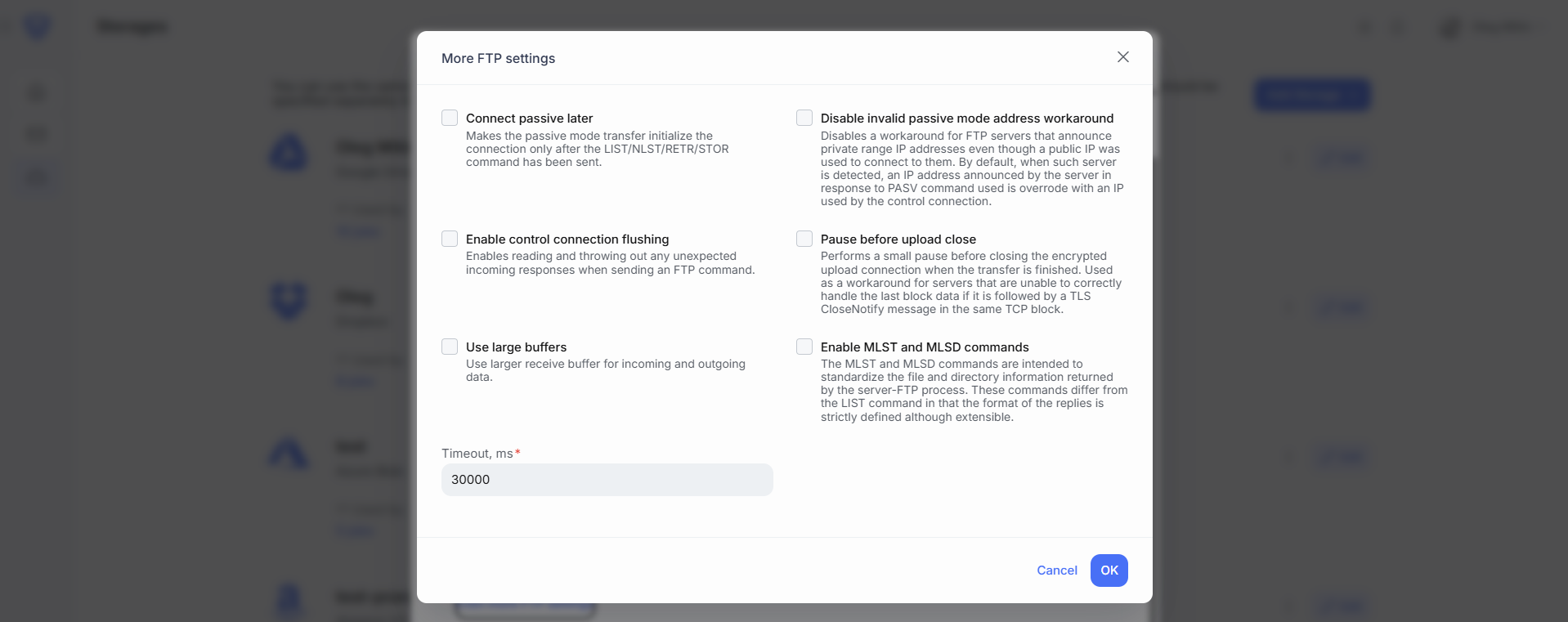
Connect passive later – Makes the passive mode transfer initialize the connection only after the LIST/NLST/RETR/STOR command has been sent.
-
Enable control connection flushing – Enables reading and throwing out any unexpected incoming responses when sending an FTP command.
-
Use large buffers – Use larger receive buffer for incoming and outgoing data.
-
Disable invalid passive mode address workaround – Disables a workaround for FTP servers that announce private range IP addresses even though a public IP was used to connect to them. By default, when such server is detected, an IP address announced by the server in response to PASV command used is overrode with an IP used by the control connection.
-
Pause before upload close – Performs a small pause before closing the encrypted upload connection when the transfer is finished. Used as a workaround for servers that are unable to correctly handle the last block data if it is followed by a TLS CloseNotify message in the same TCP block.
-
Enable MLST and MLSD commands – The MLST and MLSD commands are intended to standardize the file and directory information returned by the server-FTP process. These commands differ from the LIST command in that the format of the replies is strictly defined although extensible.
-
Timeout, ms – Set the timeout duration in milliseconds for FTP operations.
Once configured, click “Test” to verify the connection. If successful, click “Save & Close” to apply your settings.
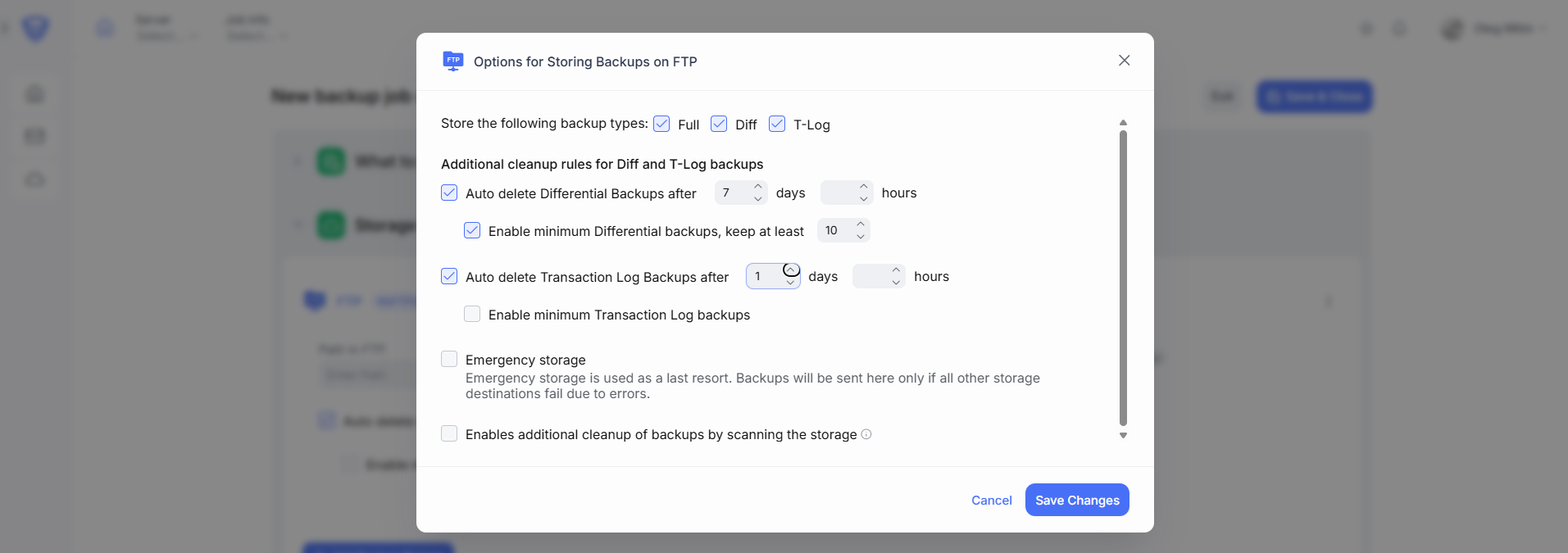
Steps to add FTP storage to a backup job:
-
Return to the Dashboard page.
-
Open the backup job you want to modify (or create a new one), and click the “Edit” button.
-
Navigate to the Storage Destination section.
-
Click “Add Backup Storage”.
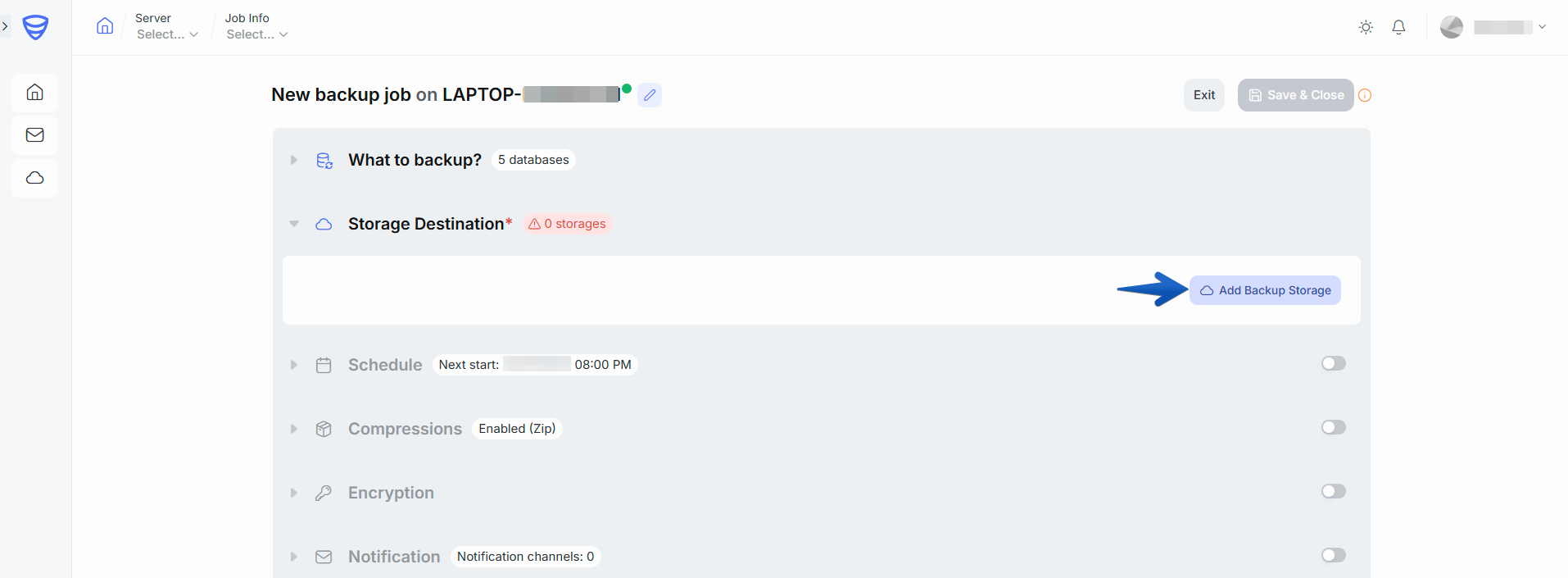
5. Select FTP storage as the destination.

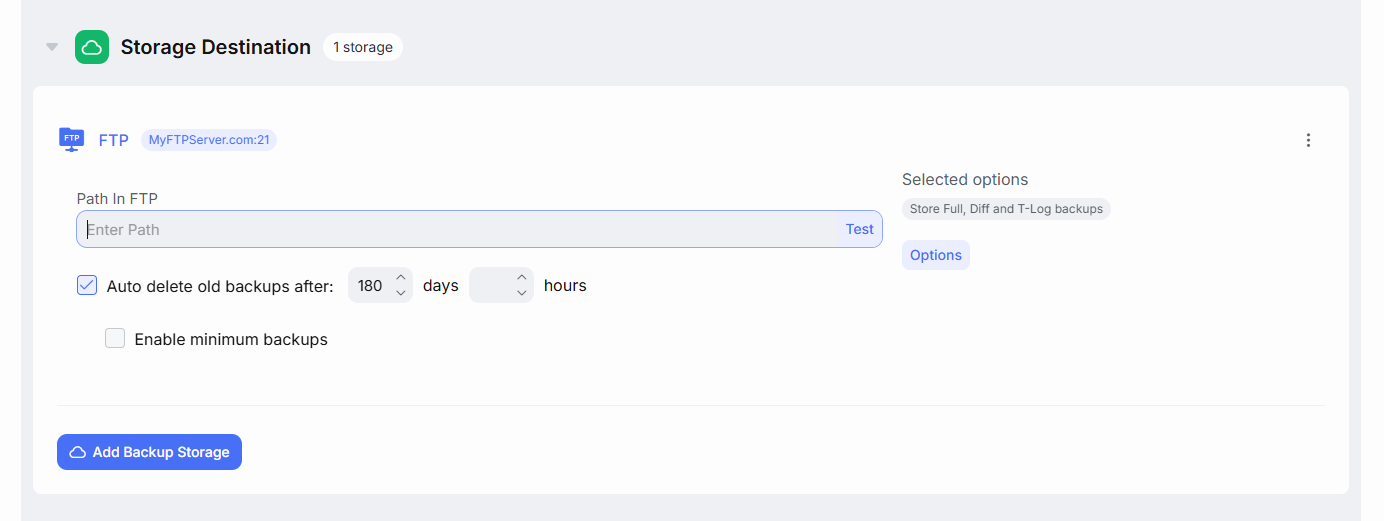
6. In the configuration window, specify the following:
-
-
Autodelete old backups after – Define a retention period for automatically deleting old backups.
-
Enable minimum backups – Set the minimum number of backups to retain, even if they exceed the defined retention period.
-
Optional settings:
-
Store the following backup types (Full, Diff, T-Log) – Choose which backup types to store in this destination.
-
Auto delete Differential backups after – Define a retention period specifically for differential backups.
-
Auto delete T-Log backups after – Define a retention period specifically for transaction log backups.
-
Enable minimum Differential or T-Log backups – Set the minimum number of differential or T-Log backups to keep, even if older than the retention limit.
-
Emergency storage – Use this option to designate FTP as an emergency/failover destination in case the primary backup storage becomes unavailable.