How to set up Email notifications in SqlBak
To receive notifications about your backup jobs (e.g., when a job fails, succeeds, or runs longer than expected), follow these steps:
1. Set up a Notification Channel in the “Notifications” page:
- Go to the “Notifications” page and click “Add chanel” and select Email as the notification channel:

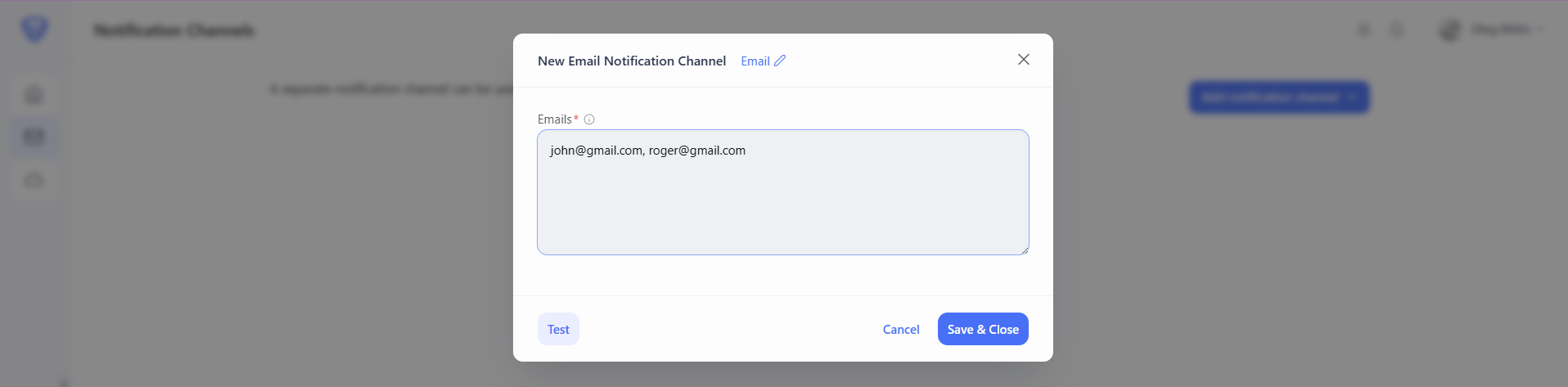
- In the “New Email Notification Channel” pop-up window, enter the email addresses you want to notify, separated by commas.
2. Open the backup job settings and toggle on the Notifications option. Add the notification types you want:
-
-
Add Success Notification – get notified when the backup job succeeds.
-
Add Failure Notification – get notified if the backup job fails.
-
Add Too Long Notification – get notified if the job runs longer than expected.
-

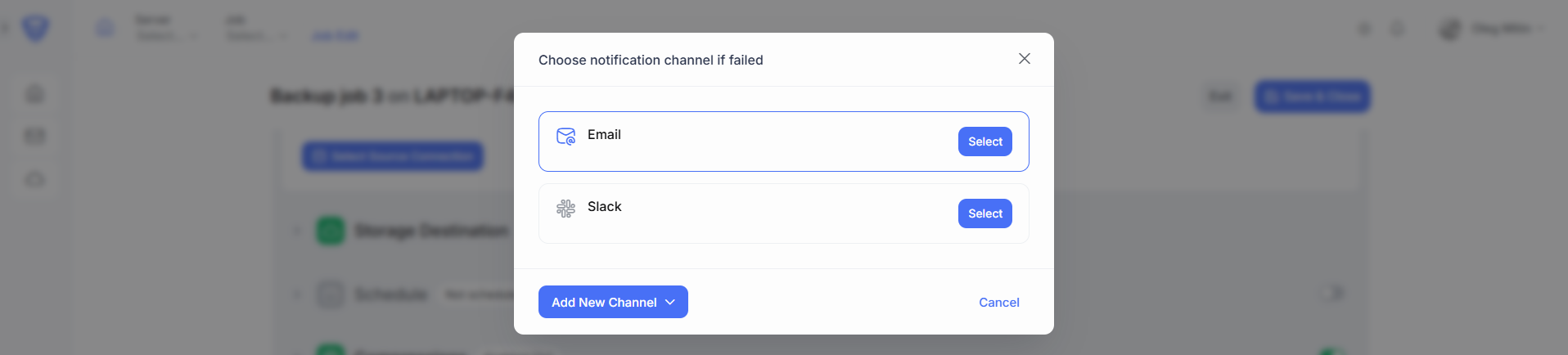
3. After choosing a notification type, you’ll be prompted to select a notification channel. Available options:
-
-
Email
-
Slack
-
If you haven’t set up a channel yet, you can create a new one using the Add New Channel button.
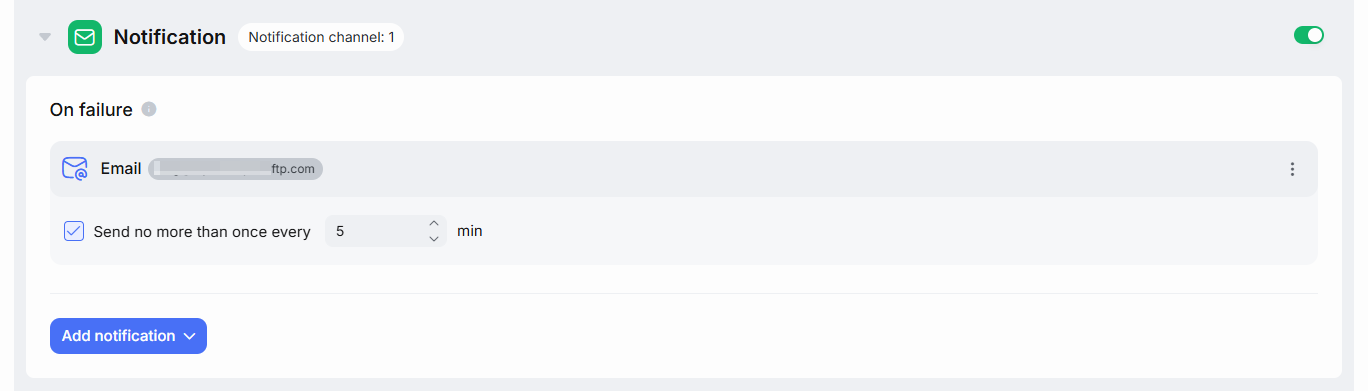
4. Once you’ve selected the channel, it will appear in your backup job settings. You can set the notification frequency (for example, send no more than once every 5 minutes).