SQL Server
Setting up Microsoft SQL Server as a data source for backup
You can select exactly what SqlBak should back up. Two options are available:
-
Backup All Databases – SqlBak will query the list of databases at the time of the backup and back them all up.
-
Set a list of databases – You can manually select specific databases from the list in the center.
For both options, you can additionally choose to include System Databases.
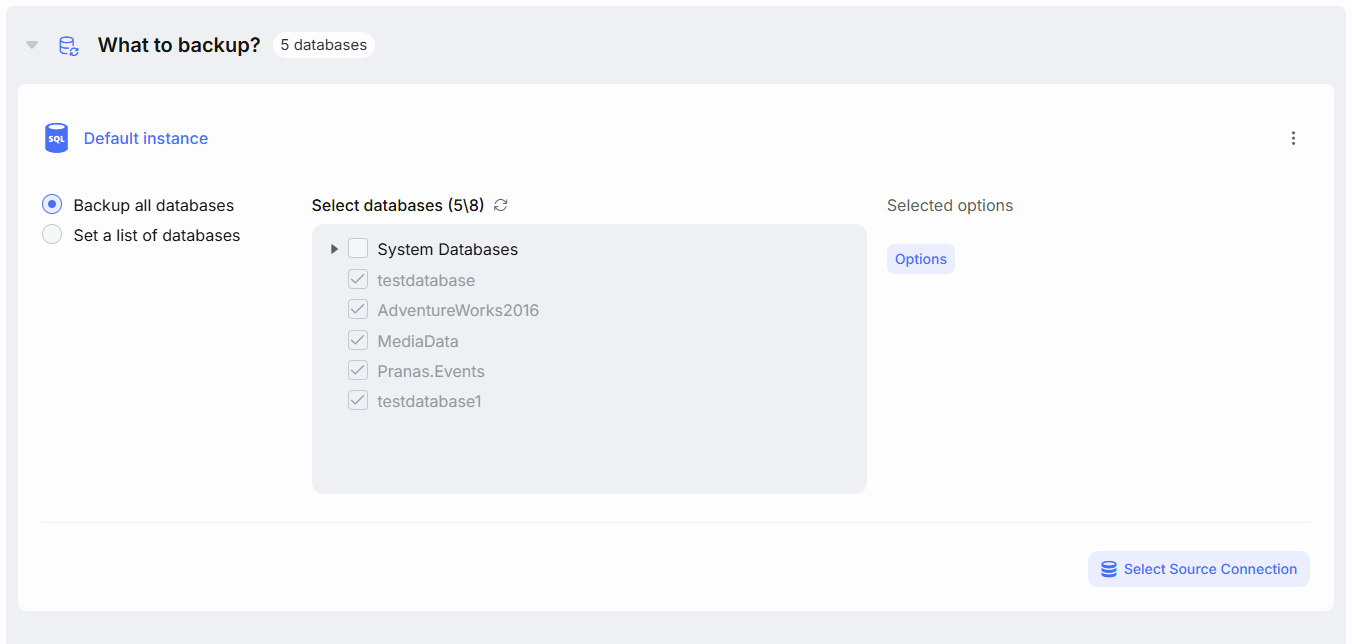
SqlBak cannot always restore system databases automatically. This option is intended for experienced DBAs who understand the purpose of system databases and know how to restore them manually if needed.
Additional Options
Click the “Options” button to configure how backups will be created and what content they will include.
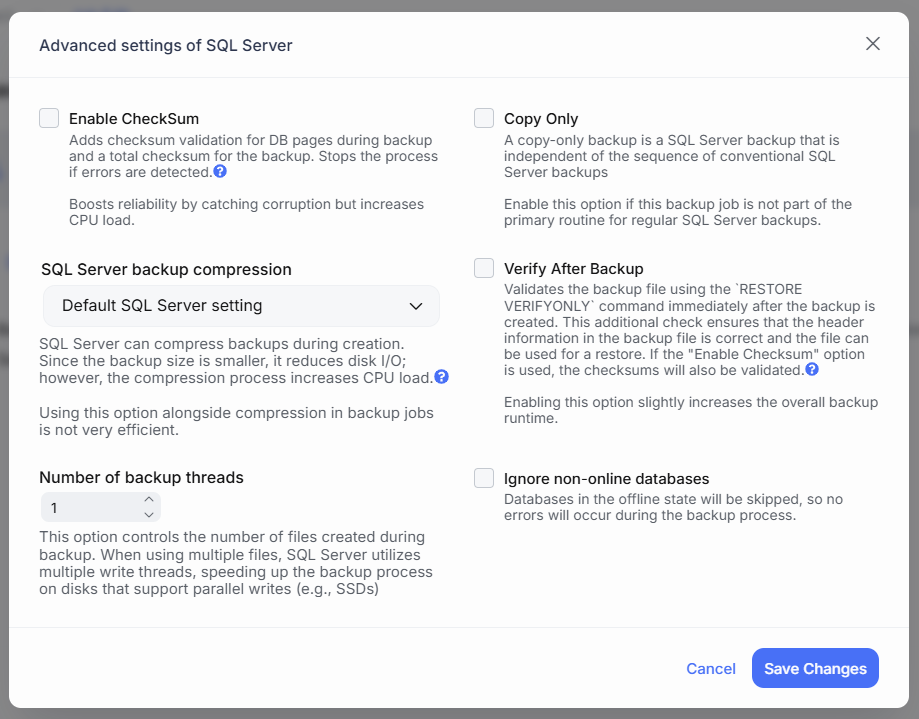
Enable Checksum
Adds the CHECKSUM option to the WITH clause of the backup command.
During backup, SQL Server will verify the page checksums. If corruption is detected, the backup will be aborted. The checksum is also written into the backup file, so if it’s corrupted, a restore will fail.
While this improves reliability, it increases CPU usage during backup and restore. See more…
Copy Only
Adds the COPY_ONLY option to the backup command.
This type of backup does not affect the backup chain — meaning it doesn’t interfere with differential or log backups.
For example, if your main backup plan includes a full backup every Sunday and daily differentials, creating a mid-week COPY_ONLY backup won’t reset the chain — differentials will still be based on the Sunday full backup.
SqlBak is capable of managing COPY_ONLY backups and will handle restores and cleanup accordingly.
If SqlBak is your primary backup tool, you don’t need to enable COPY_ONLY.
If you need a separate one-off full backup, we recommend creating a dedicated backup job with this option enabled.
Use COPY_ONLY in your main job only if you’re using another backup system as the primary one and SqlBak as a secondary.
SQL Server Backup Compression
Controls whether the COMPRESSION or NO_COMPRESSION option is added to the WITH clause. Available options:
-
Default – Compression is not managed by SqlBak and will follow the SQL Server setting (“backup compression default” option).
-
On – Compression is forcibly enabled. SQL Server will compress backups during creation. This reduces file size and disk I/O but increases CPU usage.
-
Off – Compression is disabled, regardless of SQL Server settings.
Enabling both SQL Server compression and file compression in SqlBak is usually redundant. Re-compressing already compressed files has little effect.
Verify After Backup
If enabled, SqlBak will run a RESTORE VERIFYONLY command immediately after the backup is created. This checks the metadata in the backup file to ensure it’s restorable.
To verify backup content integrity, the Enable Checksum option must also be enabled.
While this improves confidence in backup reliability, it increases the total backup time.
Number of Backup Threads
If more than one thread is specified, the backup will be written to multiple files in parallel using multiple TO DISK clauses.
Modern SSDs support parallel writes, so this can significantly speed up the backup process — but it also increases CPU and disk load.
When this option is enabled, compression will automatically be applied, and each database will be stored in a separate backup file.
Ignore Non-Online Databases
If enabled, SqlBak will skip databases that are in offline mode and continue with the backup job.
If this option is disabled, attempting to back up an offline database will result in a job failure.